
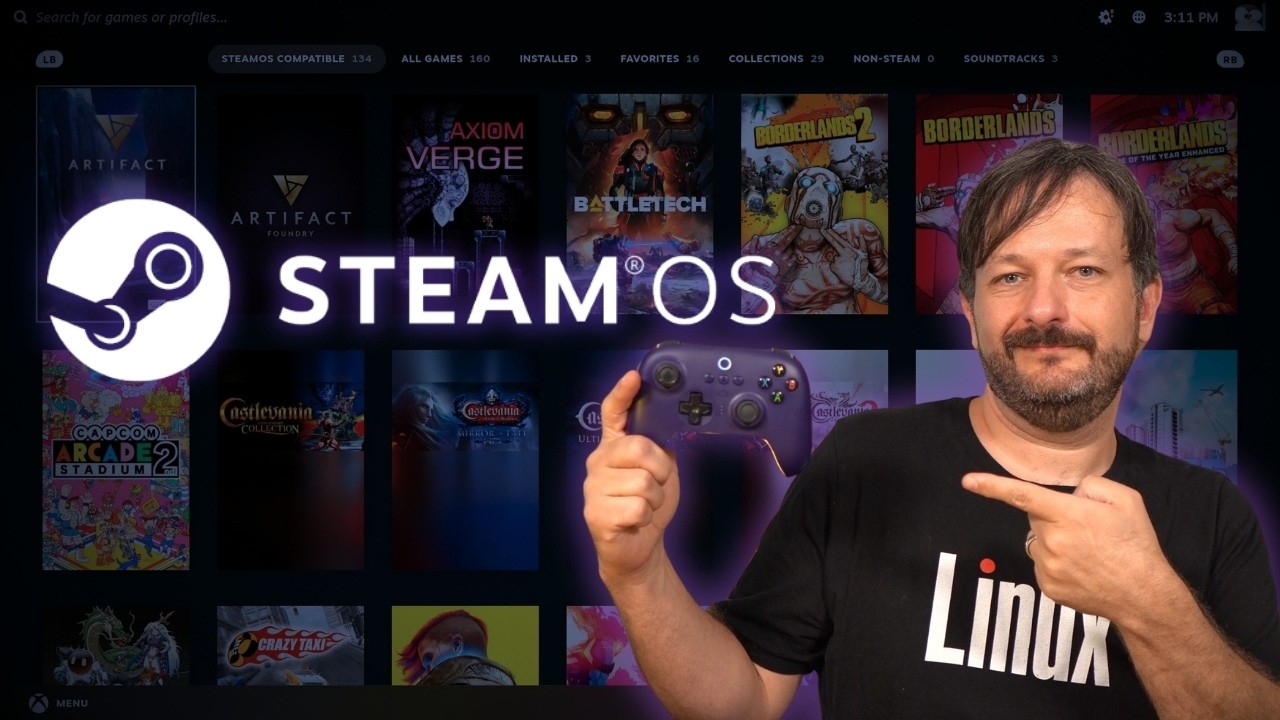
SteamOS is no longer limited to the Steam Deck—and it could completely change Linux gaming on desktop PCs. In this video, I explore the full SteamOS experience, from installing and launching games to system updates, settings, purchasing games, and using the Linux-based Desktop Mode.
For a walkthrough of the entire installation process, check out my SteamOS beginner guide!
What is SteamOS?
Surprisingly, this story begins with failure—or at least a pretty serious false start.
Valve introduced SteamOS in 2013 as part of its original push into the living room. The operating system was based on Debian and designed to power a new category of gaming PCs called Steam Machines. I was incredibly excited about the idea, but when Steam Machines finally reached the market in 2015, neither the hardware nor SteamOS gained much traction.
Valve didn’t give up on Linux gaming, though. Instead, it changed its strategy. One of the original platform’s biggest weaknesses was its limited game library, so Valve invested heavily in compatibility technology that could bring Windows games to Linux. That effort eventually gave us Proton, which made thousands of previously incompatible games playable without native Linux versions.
Then came the Steam Deck—and this time, the strategy worked. The handheld became a commercial success and introduced SteamOS to a much larger audience.
The Steam Deck also arrived with a completely rebuilt version of SteamOS. Valve moved the operating system from Debian to Arch Linux, which might seem like a surprising choice. Arch-based distributions are often associated with frequent updates and hands-on maintenance, but Valve handles that complexity behind the scenes.
From a technical perspective, the new SteamOS is extremely impressive. It uses a largely read-only system partition to protect the core operating system, while its built-in update system makes upgrades far less likely to break anything. Proton is integrated directly into Steam, allowing many Windows games to launch just as easily as native titles.
The downside was that this rebuilt SteamOS initially targeted the Steam Deck and only a limited selection of other devices. But that has now changed. Valve’s newly released Steam Machine is essentially a compact gaming PC, and alongside it, Valve released SteamOS 3.8 with support for installing the same operating system on desktop hardware.
And that’s the part I find so exciting. Now we can use SteamOS to build a gaming console around the hardware we choose. Maybe you have an older PC you’d like to repurpose, or perhaps you want to build something even more powerful than Valve’s Steam Machine. Either way, you now have that option—and the setup process is remarkably simple.
I covered the entire installation in a separate video, which I’ll link in a card right about here. But the short version is that you create a bootable USB drive, start your PC from it, and follow a few prompts. The installer wipes the computer, installs SteamOS, and turns it into a console-style gaming system.
The first-time setup is just as approachable. SteamOS walks you through connecting to Wi-Fi, configuring your display, pairing a controller, and signing in to your Steam account. Once that’s finished, you’re ready to start playing.
Before you install it, however, there’s one major hardware requirement you need to know about: SteamOS currently supports desktop PCs with AMD graphics. If your system uses an NVIDIA GPU, you’re officially out of luck for now.
Some members of the community have managed to get SteamOS running on NVIDIA hardware, but those configurations aren’t officially supported and may require additional work. Valve says it plans to expand hardware support in the future, but for the time being, AMD is the safe—and officially supported—option
Overall Opinions
So, what’s my overall opinion of SteamOS? After spending quite a bit of time with it, I’m ready to share my verdict.
The first thing that stands out is just how well SteamOS is designed. The interface won’t appeal to everyone, but I found it intuitive and easy to navigate. The controls are where you’d expect them to be, the menus are organized logically, and I rarely had trouble finding what I needed. There’s also an impressive level of polish throughout—even the welcome experience you see after installation feels carefully considered.
Game compatibility is where things become a little more complicated. Most popular PC games are developed for Windows, not Linux. Proton bridges that gap by translating the technologies those games rely on so they can run on Linux. Most of the time, it works remarkably well—but it isn’t magic.
A game you want to play may perform poorly, require some troubleshooting, or refuse to run altogether. Multiplayer games that use certain anti-cheat systems can be particularly troublesome. Compatibility continues to improve, so a game that doesn’t work today may become playable later. Fortunately, every game I personally wanted to play was supported, so my experience has been excellent.
Another thing I appreciate about SteamOS is its flexibility. You can use it to create a dedicated gaming system, giving you a clear separation between work and play. But if you prefer one computer that does everything, Desktop Mode gives you access to a conventional Linux environment for browsing the web, installing applications, and getting work done.
In other words, SteamOS can serve as either a living-room console or an all-purpose PC—although people who depend on Windows-specific professional software should check compatibility before making the switch.
Going forward, I think we’ll see two main groups of SteamOS users. The first will buy devices with SteamOS already installed, whether they come from Valve or one of its hardware partners. We’re already seeing SteamOS expand beyond Valve’s own products, and I expect that trend to continue.
The second group will be the do-it-yourself crowd: people who would rather build a system themselves or repurpose hardware they already own. I don’t know how large that audience will become, but turning an unused PC into a living-room gaming console is a fun project—and it could save you from buying another device.
Whether you build your own system or buy one with SteamOS preinstalled, I think it’s a fantastic gaming-focused Linux distribution. Most of the Windows games I tested worked extremely well, and the controller-friendly interface makes it easy to sit down and start playing.
It isn’t the right choice for every game or every PC, but if you want a streamlined system that lets you grab a controller, relax, and escape for a while, SteamOS is one of the best options available.