
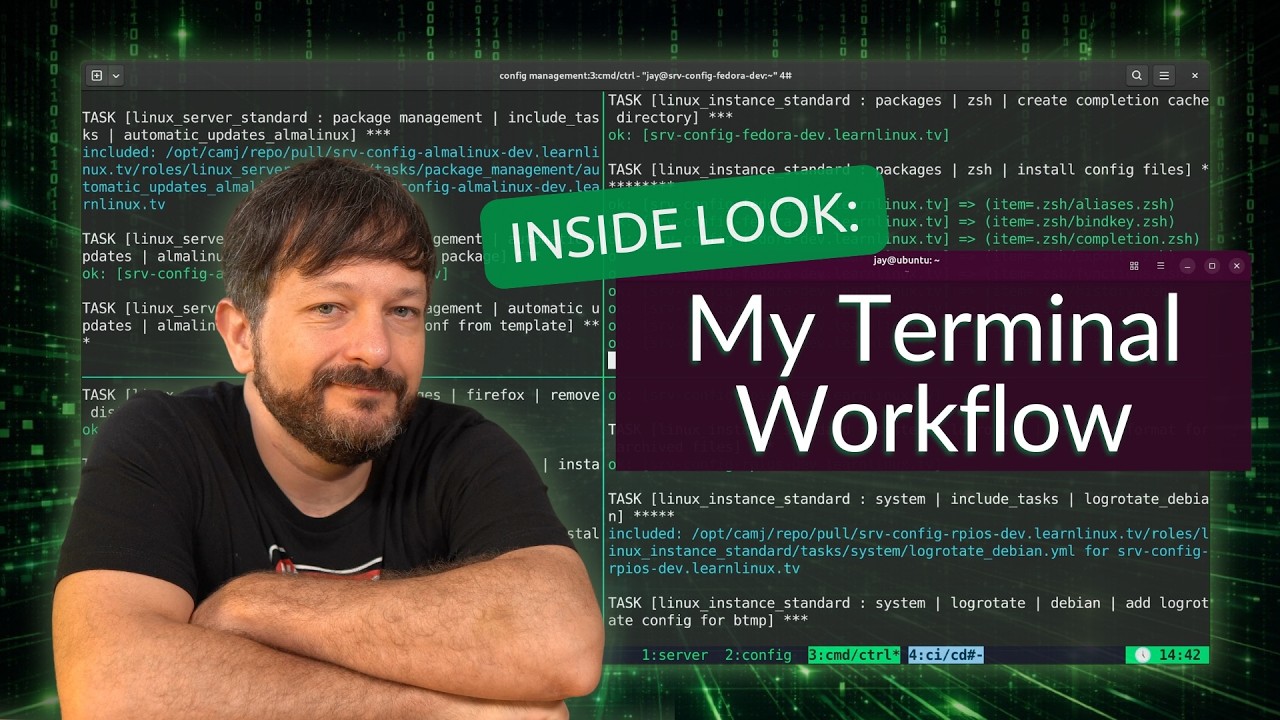
Your terminal setup says a lot about your workflow – in this video, I walk through how I configure my Linux terminal environment, covering tmux, Vim, my Bash configuration, and even a live Ansible provisioning run to deploy this setup across my LLTV servers.
If you’re looking to build a faster, more efficient terminal workflow on Linux, this video covers the core tools I rely on every day as a sysadmin.
Download my dotfiles here!
tmux
And we’ll start with tmux, which is an application I spend a considerable amount of time using every single day.
I’ve actually talked about tmux quite a bit in previous videos, so I’m not going to spend too much time explaining the basics here. But in short, tmux is a tool that runs inside your terminal and adds features such as tabs, pane splitting, session management, and much more.
What I personally like most about tmux is its session management capabilities.
For example, I can create a completely separate tmux session for each project I’m working on, and then instantly switch between them whenever I want — all without opening additional terminal windows. That makes it incredibly easy to organize different workflows and keep related terminals grouped together logically.
It also includes some really useful power-user features as well. One example is the ability to send commands to multiple panes or terminals simultaneously, which can save a huge amount of time in certain situations.
Now, with all of that said, I personally find the default tmux configuration to be almost unusable.
The stock keybindings feel like finger gymnastics to me. It often feels like you’re stretching your hands across the keyboard just to perform basic actions, so one of the very first things I did was heavily customize the controls to better match how I actually work.
For starters, I changed the primary prefix key to CTRL+F because my fingers naturally rest near those keys most of the time anyway.
I also configured a secondary prefix using CTRL+J. And honestly, I think a lot of people don’t even realize tmux supports multiple prefix keys, but if you didn’t know that already, now you do.
The reason I chose those particular combinations is because the F and J keys are home row keys, so your fingers are almost always nearby. That makes activating tmux commands feel much faster and far more natural compared to the default bindings.
Beyond that, I’ve also customized navigation quite a bit.
For example:
- holding Shift while pressing the arrow keys switches between tmux windows
- holding Alt while pressing the arrow keys moves between panes
Those changes make tmux feel significantly more fluid and intuitive for me compared to the stock configuration.
I’ve also heavily customized the status bar at the bottom as well.
I’ve changed the colors, adjusted the layout and placement, and added various pieces of information that I personally find useful to have visible at all times.
And honestly, that’s one of the things I love most about tmux overall — it can be customized extensively to fit the exact workflow you want. Once you spend enough time tailoring it to your preferences, it becomes incredibly difficult to live without.
vim
Next up is Vim, which is my text editor of choice whether I’m working in the terminal or on the desktop.
At this point, Vim is so deeply integrated into my workflow that I use it for just about everything involving text editing.
Now, one thing that’s important to mention is that Vim definitely has a much steeper learning curve compared to something like GNU nano. If you’re completely new to Vim, it can honestly feel a bit intimidating at first because the editing model is very different from what most people are used to.
But in my opinion, the time investment absolutely pays off.
One of the biggest strengths of Vim is just how incredibly powerful and customizable it is. Once you become comfortable with it, you can edit text extremely quickly and shape the environment around your workflow in ways that simpler editors typically don’t allow.
And honestly, there’s probably not a ton more I can say about Vim in a video like this because at the end of the day, it is still just a text editor.
But it is an exceptionally powerful one, and it’s remained one of the most important tools in my workflow for years now.
And if you’d like to learn Vim yourself, I actually have a full course available right here on YouTube where I cover it in much greater detail from the ground up.
Bash
When it comes to my shell of choice, honestly, I’m still using Bash.
I know a lot of people have moved over to Z shell, or Zsh, over the last several years, but personally I’ve never really felt a strong need to switch away from Bash because it already works extremely well for my workflow.
At the end of the day, Bash is stable, reliable, available everywhere, and it does everything I need it to do.
That said, I do maintain a Zsh configuration as well, just in case I ever decide to move in that direction later on.
In fact, I’ve intentionally configured both environments to look almost completely identical. The prompts, colors, layouts, and overall behavior are extremely similar between the two shells.
So honestly, if I switched between Bash and Zsh right now while recording, there’s a pretty good chance most people wouldn’t even notice the difference visually.
And that’s actually intentional.
By keeping the configurations nearly identical, Zsh effectively becomes a drop-in replacement if I ever decide to switch over permanently in the future.
Beyond that, I also make heavy use of aliases to speed up common tasks throughout the day.
For example:
- I use
ias a shortcut for installing packages - I have aliases like
mem10andcpu10that instantly show the top ten memory or CPU-consuming processes - and I’ve even configured my shell environment to automatically execute the
cdcommand whenever I change directories
Little quality-of-life improvements like that may seem minor individually, but over time they add up significantly and make the command-line environment feel much faster and more fluid to work in every day.