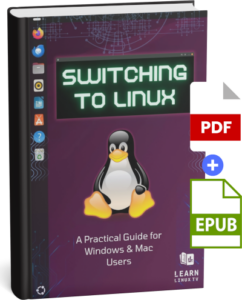
Switching to Linux is one of the best decisions you can make for your computer — but knowing where to start is another matter entirely. This book is your guide through that transition, written by Jay LaCroix, creator of the Learn Linux TV YouTube channel, with over a decade of experience helping people make Linux approachable.
Whether you’re fed up with Windows nudging you toward Microsoft Edge or Apple prompting you to sign in to yet another account, Linux offers a computing experience designed to work for you, not against you. You’ll learn everything you’ll need to know — from understanding what Linux actually is, to choosing a distribution, installing it, and using it confidently day to day.
By the end, you won’t just have Linux running on your computer. You’ll understand it!
In this full getting started guide, I’ll show you everything you need to know to get up and running with Kestra — the open source workflow orchestration platform that makes it easy to automate your infrastructure tasks, schedule jobs, and build powerful flows without complex scripting.
We’ll start from scratch: setting up a Linux server, installing Docker, and deploying Kestra. Then we’ll dive into building real-world flows — including an HTTP health check monitor, a remote SSH command runner, and an Ansible playbook runner for automated server provisioning.
By the end of this video, you’ll have a working Kestra instance and a solid understanding of how to build and manage your own automation workflows.
Thanks to Kestra for Sponsoring this Deep-Dive! Check out Kestra and automate your workflows for both homelab and business.

Fedora Workstation 44 is here — but is it worth upgrading? In this review, I take a look at what’s new in Fedora 44, walk through the installation and upgrade process, and share my honest thoughts on whether this incremental release moves the needle for Linux desktop users.
We’ll also talk about the bigger picture: what “boring” releases mean for Fedora’s long-term competitiveness, and whether the increased focus on the KDE Plasma spin signals a shift in direction.
Thanks to Flox for sponsoring this video! Flox gives you reproducible and declarable development environments—but without needing to build and manage container images. Instead, you define exactly what your environment needs, and it just works consistently across your system. Check it out here.
Installation Process
Let’s start with the installation process.
As I mentioned earlier, Fedora 44 doesn’t bring many noticeable changes—and that holds true here as well. The installer is largely unchanged from previous releases, but that’s not a criticism.
Like before, the process begins with creating bootable media, and the Fedora project makes that easy with Fedora Media Writer—a dedicated tool available for all major operating systems. It’s straightforward, polished, and honestly, I wish more distributions offered something similar.
Once you boot from the media, you’re dropped into a live environment, which gives you a chance to test hardware compatibility before committing to the install. When you’re ready, launching the installer is simple—you just answer a few basic questions, and the process completes without much effort.
Existing Fedora users have it even easier. After Fedora 44 was released, I opened GNOME Software and saw a banner on the Updates tab offering the upgrade. One click to confirm, and the upgrade completed without any issues.
And that really sums it up—unchanged doesn’t mean bad. Whether you’re installing fresh or upgrading an existing system, the experience is smooth from start to finish. Fedora Media Writer, in particular, continues to stand out as one of the better onboarding tools in the Linux space.
New Features
Once you get it installed, you’ll have a chance to explore Fedora 44 and see what’s new.
So… what exciting features can you expect?
Well, not much—at least not from Fedora itself.
Most of the new features in this release actually come from GNOME 50, which is the latest version of the desktop environment at the time I’m recording this. And while GNOME 50 does include some genuine improvements, those changes are part of GNOME—not Fedora specifically.
What that means is that while Fedora 44 does benefit from improvements to graphics, animations, and core applications, other distributions using GNOME 50 will be getting those same features as well.
Still, improvements are improvements, so let’s take a look at some of the more noteworthy changes GNOME brings to the table.
One of the biggest areas of improvement is graphics performance.
GNOME 50 includes things like native fractional scaling, reduced mouse cursor latency, performance improvements for NVIDIA users, and better HDR support. There’s actually quite a bit happening here, and since multiple graphics-related improvements landed in the same release, many users should notice smoother performance overall.
Accessibility has also seen some meaningful updates.
There are now more consistent, system-wide accessibility settings, along with features like automatic language switching and a more unified experience when enabling these options in the first place.
Beyond that, there are a number of smaller improvements as well—things like smoother animations and better performance when browsing network shares, especially when dealing with large directories.
Overall, GNOME 50 does bring some solid improvements. But whether or not you’ll actually notice them will depend a lot on your hardware and how you use your system.
Normally, Fedora is the sum of all its parts. Each release typically includes improvements from both GNOME and Fedora itself—and that combination is a big part of what makes Fedora such a strong distribution.
But in the case of Fedora 44, most of what’s new comes from GNOME alone.
So the question is… is that actually a bad thing?
Is this release too boring?
Well, let’s talk about that.
First, it’s important to point out that Fedora 44 does include improvements across the board—especially under the hood. We’re getting updated development tools, refinements to core technologies, and some architectural changes as well. But the reality is, you may or may not actually notice any of that in day-to-day use.
And honestly, that’s not necessarily a bad thing.
One of the advantages of a “boring” release like this is that fewer major changes usually means fewer opportunities for instability. We don’t always need something new and flashy—what matters most is that the system works reliably and helps us get our work done.
And in that regard, Fedora 44 does a fantastic job.
I’ve tested both fresh installations and upgrades from previous versions, and at no point did I run into any issues. In fact, even my automation environment didn’t need any adjustments. Since not much has changed, my existing configuration worked exactly as expected.
After installation, I noticed only very subtle performance improvements. But to be fair, my hardware is already fairly powerful, so it’s not like Fedora is pushing it very hard in the first place.
And in a way, not noticing anything is actually a positive outcome. There were no crashes, no slowdowns—nothing negative to report when it comes to performance.
That said, while stability is great, there is a downside to too many incremental releases.
If the focus stays on small changes for too long, the project can start to feel a bit stale. In fact, there have been times where my Fedora Workstation reviews went out later than usual, simply because it was difficult to find enough meaningful changes to talk about.
Now, to be fair—if a distribution doesn’t have any major issues to fix, then constant innovation isn’t strictly necessary.
But Fedora isn’t perfect, and there are still areas that could use improvement.
One example is the experience for NVIDIA users.
Earlier, I mentioned that GNOME brings performance improvements for NVIDIA hardware—and that’s great. But in practice, those improvements don’t always matter as much as they should, because the default driver Fedora uses isn’t capable of delivering the best performance.
Fedora relies on the open-source NVIDIA driver by default, which means you might not fully benefit from those improvements unless you install the proprietary driver.
Now, to be clear, that’s not unusual—and it’s not necessarily a problem on its own. Installing the proprietary driver does solve the issue.
But the process on Fedora is more complicated than it needs to be.
Other distributions handle this more smoothly.
Ubuntu, for example, offers proprietary drivers directly through its Software & Updates tool, allowing you to install them with just a few clicks. Pop!_OS goes even further by offering a dedicated NVIDIA edition that’s preconfigured out of the box.
With Fedora, on the other hand, you still need to add a third-party repository and go through additional steps that other distributions don’t require.
Now, I understand why this is the case.
Fedora is sponsored by Red Hat, and its focus has always been on open-source software. That philosophy explains why proprietary drivers aren’t included by default.
But from a user experience standpoint, this approach can feel unnecessarily restrictive—especially for users who just want their hardware to work as expected.
So instead of focusing solely on incremental updates, this might be an area where Fedora could improve the overall experience.
And when you compare Fedora to other distributions, this becomes even more noticeable.
For example, Ubuntu has made progress in areas like ROCm support for AMD GPUs, making it easier for users to take advantage of that hardware. On Fedora, getting similar setups working can still be more involved.
And in some cases, the experience can be frustrating enough that the community builds workarounds—like helper tools specifically designed to get applications like DaVinci Resolve running properly.
When users have to rely on third-party tools just to get common workflows working, that’s usually a sign that something could be improved upstream.
Because of that, it can start to feel like other distributions are moving ahead in terms of desktop usability.
Whether you prefer it or not, Ubuntu has made a number of changes aimed at improving the desktop experience, along with introducing more user-facing features.
Meanwhile, Fedora’s continued focus on incremental updates raises the question of whether the project might eventually have more ground to cover if it decides to shift direction later on.
As for me personally, I still use Fedora as my daily driver.
But that’s largely because I’ve already automated things like driver setup and system tweaks, so those extra steps don’t affect me as much.
For newer users, though, Fedora can be a bit more challenging to set up compared to some alternatives.
The Plasma Release
But you know what? There is actually one part of Fedora 44 that feels genuinely new and exciting—and that’s the Plasma spin.
In many releases, it feels like the flagship GNOME edition gets most of the attention. But this time around, KDE Plasma users are the ones getting some of the more noticeable improvements.
For starters, there’s a brand-new login manager, along with a more polished onboarding experience the first time you log in. The overall experience also feels more unified and consistent. In previous versions, it wasn’t uncommon to end up with a mix of GNOME and KDE applications that made things feel a bit stitched together. This time, Plasma feels more cohesive—more like a fully integrated desktop rather than a collection of parts.
Fedora 44 ships with Plasma 6.6, which, at least in this release cycle, brings more visible features than GNOME does. You get things like QR code support for connecting to Wi-Fi, per-application audio controls, and various usability improvements throughout the desktop – and more.
So if you prefer Plasma over GNOME, this release actually has quite a bit to offer.
Overall
All in all, Fedora 44 is a bit of a mixed bag.
This release leans heavily toward under-the-hood improvements rather than noticeable, user-facing changes—and while that’s not inherently a bad thing, it’s also been the pattern for a while now. At the same time, other distributions seem to be gaining momentum. Ubuntu 26.04, for example, feels like a much more eventful release, and comparisons like that can make Fedora look like it’s starting to fall behind.
For me personally, that gap has shown up in real-world use. The last time I tried to get DaVinci Resolve working on Fedora, I ended up giving up and moving my editing machine back to Pop!_OS. And while I understand the philosophy around proprietary drivers, at the end of the day I just want to get my work done—and I’d rather not maintain a second distribution just to make that happen.
That said, it’s only fair to point out the positives.
Driver challenges and feature pacing aside, Fedora 44 is a very stable release. The installation and upgrade process is smooth, everything works as expected, and the Plasma spin in particular is genuinely exciting this time around. So there is definitely value here, depending on what you’re looking for.
For new users, or if you’re deciding between distributions, I would probably recommend Ubuntu 26.04 over Fedora for this cycle. It offers more visible improvements, and with long-term support, it’s a solid choice for a system you plan to rely on for several years.
But for existing Fedora users, I have no hesitation recommending the upgrade. If Fedora is already working well for you, then Fedora 44 will too.
In this tutorial, you’ll learn how to install Fedora Workstation 44 from scratch — including how to create bootable USB media with Fedora Media Writer, how to test Fedora in Live Mode before committing to the install, and how to install and update software. This step-by-step guide will walk you through everything you need to know to get Fedora 44 up and running on your PC.
Ubuntu 26.04 LTS is here — and this release brings some significant changes. In this review, I cover what’s new in Ubuntu 26.04 LTS, how it compares to other distributions, the NVIDIA improvements and full transition to Wayland, installer upgrades, and the RAM requirement controversy that has the Linux community talking.
Is Ubuntu 26.04 LTS worth upgrading to? I’ll give you my honest verdict.
In this video, I’ll show you how to install Ubuntu 26.04 LTS from scratch — covering everything from downloading the ISO and creating a bootable USB drive with USBimager, to walking through the Ubuntu 26.04 installer step by step and installing updates after setup is complete. Whether you’re installing Ubuntu for the first time or migrating to the latest LTS release, this guide has you covered.
Immutable Linux distros are one of the most talked-about concepts in the Linux world right now — but what does “immutable” actually mean, and should you consider switching? In this video, we break down exactly what immutable Linux distros are, how they work under the hood, what technologies power them, and whether they’re the right choice for you.
This isn’t just a buzzword — immutable Linux distros represent a fundamentally different approach to how a Linux system is designed, updated, and protected. Whether you’re a Linux sysadmin, a homelab enthusiast, or just someone curious about where Linux is headed, this explainer will give you a solid foundation.
lnav is a powerful, feature-rich log file viewer for Linux that makes analyzing, searching, and filtering log files far easier than traditional tools like tail and grep. In this tutorial, you’ll learn how to install lnav, navigate its interface, search and filter log files, view multiple logs at once, and tail live log files in real time — all from the command line.
Whether you’re a Linux sysadmin troubleshooting a production server, a homelab enthusiast digging through system logs, or a Linux user who wants a smarter way to read log files, lnav is a tool worth adding to your workflow.
Are IT certifications worth pursuing in 2026? In this video, we break down everything you need to know before investing your time and money into an IT certification — including whether they’ll actually boost your career, how to choose the right one for your goals, and the key differences between vendor-neutral and vendor-specific certifications.
Whether you’re just starting out in IT or you’re a seasoned sysadmin weighing your next move, this is the honest, no-fluff guide to navigating the certification landscape.
In this tutorial, you’ll learn how to use Warehouse — a powerful graphical tool for managing Flatpak applications on Linux. Warehouse gives you full control over your Flatpak apps, including the ability to manage user data, create snapshots, and restore previous states — all from a clean, easy-to-use interface.
Whether you’re new to Flatpak or a seasoned Linux user looking for a better way to manage your apps, this video covers everything you need to get started with Warehouse on any Linux distribution that supports Flatpak and Flathub.
New to Raspberry Pi? This beginner’s guide covers everything you need to know to get up and running — from choosing the right model to installing Raspberry Pi OS and taking your first look around the desktop.
Is AI actually useful in Linux — or is it just a gimmick?
Sloppix is a brand new Linux distro with AI features baked right in — terminal assistance, automated sysadmin tasks, and more. So I put it to the test.
But by the end, there’s a bigger question worth asking: AI is being bolted onto every tool, every distro, and every workflow in the Linux space right now — and a lot of it is AI slop dressed up as innovation. It’s worth stopping to think about what we’re actually gaining, and what we’re losing when we let AI do the thinking for us.
The 2026 System76 Thelio Mira is one of the most interesting Linux desktops on the market — but is it actually worth your money? In this review I cover everything from first boot on Pop!_OS to running Fedora and Debian, real-world benchmarks, gaming performance, and whether this machine deserves a place in your homelab or on your desk.